Your Laptop Is Aging Faster Than You Think — Here's What's Actually Going Wrong
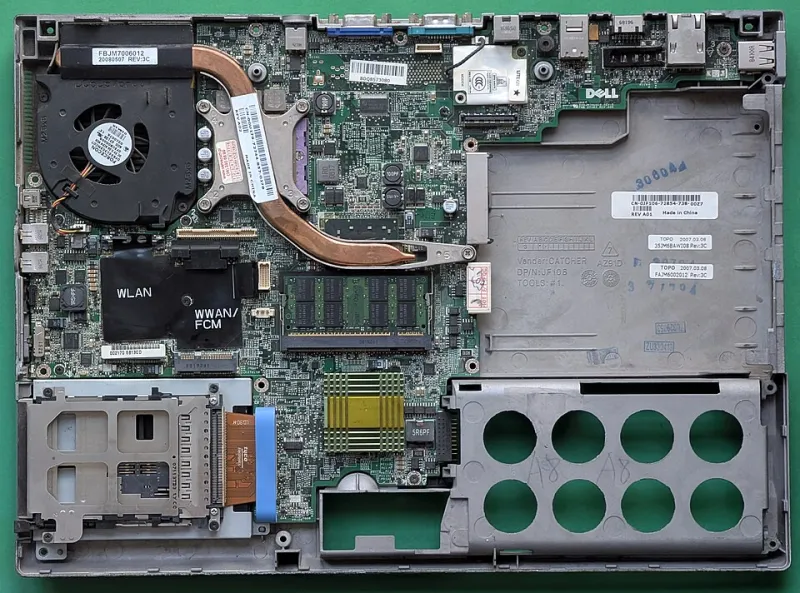
Photo: Siarhei Besarab, CC BY-SA 4.0, via Wikimedia Commons
You bought a solid machine. It was snappy on day one — apps launched instantly, fans barely spun up, and you could muscle through a full workday without a hiccup. Now, two or three years in, something feels off. It's not dramatic. It's subtle. A little lag here, a warm palm rest there, a spinning cursor that wasn't there before. You chalk it up to software bloat or just "getting old."
But here's the thing: your portable workstation isn't just aging — it's aging faster than a desktop sitting on someone's desk at home. The compact design that makes your laptop pocketable and packable also makes it uniquely vulnerable to a specific set of wear patterns that most people never think about until performance has already taken a serious hit.
Let's break down what's actually going wrong — and more importantly, what you can do about it.
The Storage Problem Nobody Warns You About
SSDs were supposed to fix everything. And compared to the spinning hard drives of the last decade, they did — until they didn't.
Here's the uncomfortable truth: SSDs slow down as they age, and the way most people use a laptop accelerates that process considerably. NAND flash memory — the stuff your SSD is built from — has a finite number of program/erase cycles per cell. Consumer-grade drives in most laptops use TLC or QLC NAND, which trades longevity for cost. Over time, worn cells get retired, and your drive's controller has to work harder to manage data across fewer healthy blocks.
But raw cell wear isn't even the biggest culprit for most users. Cache fragmentation is.
Modern SSDs use a small, fast portion of their storage as a write cache — essentially a buffer that lets the drive accept data quickly before organizing it in the background. When your drive is consistently running at 80–90% capacity (a very common scenario on laptops where people don't want to manage storage), that cache has nowhere to breathe. Data gets written directly to slower TLC cells without the cache buffer, and sequential write speeds can drop dramatically — sometimes by 50% or more on heavily used drives.
The fix here is almost embarrassingly simple: keep at least 15–20% of your SSD free at all times. On a 512GB drive, that's roughly 75–100GB of breathing room. If you're bumping up against your ceiling regularly, it's time to either offload files to an external drive or cloud storage, or seriously consider an upgrade.
For Windows users, make sure TRIM is enabled (it almost certainly is by default, but it's worth checking). TRIM lets your OS tell the SSD which blocks are no longer in use, helping the controller maintain efficiency over time. On a Mac, this is handled automatically.
Heat Is the Real Enemy of Compact Hardware
Desktop PCs have it easy. Big cases, beefy heatsinks, multiple fans with room to spare — heat dissipation on a tower is almost a non-issue under normal use. Laptops, by contrast, are thermal engineering nightmares by design. Everything is crammed together, airflow is restricted, and the margin for error is slim.
The compound responsible for transferring heat from your CPU (and often your GPU) to the heatsink is called thermal paste — and it doesn't last forever. Most factory-applied thermal paste starts to dry out and lose effectiveness somewhere between two and four years of regular use, depending on how hard you push the machine. Once it degrades, thermal resistance increases, your chip runs hotter, and your laptop's thermal management system responds the only way it knows how: by throttling clock speeds to keep temperatures in check.
This is why a three-year-old laptop can feel dramatically slower under sustained load even if the hardware is technically unchanged. It's not the CPU getting weaker — it's the CPU getting hotter, and backing off to protect itself.
Replacing thermal paste is one of the highest-impact maintenance tasks you can do on an aging laptop. It's not as intimidating as it sounds. For most machines, it involves removing the bottom panel, carefully cleaning the old compound off the chip and heatsink with isopropyl alcohol, and applying a pea-sized amount of fresh paste. Channels like iFixit have step-by-step guides for hundreds of models, and the whole job often takes under an hour.
Will this void your warranty? On most machines, no — but check your specific manufacturer's terms. Apple, for example, has historically been more restrictive here, while many Windows laptop makers are more permissive.
If you're not comfortable going in yourself, a local repair shop can handle it for $50–$100 in most US markets. That's a fraction of what a new machine costs, and the performance difference can be genuinely shocking.
Fan Dust Buildup: The Slow Suffocation
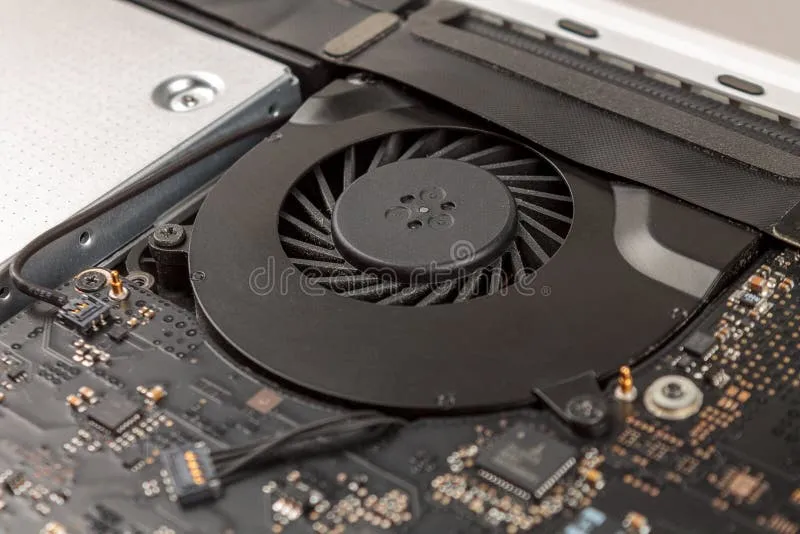
Before you even get to thermal paste, there's a simpler culprit worth addressing: dust. Laptop cooling systems pull air in through small vents, pass it over fins and heat pipes, and exhaust it out the other side. Over time, those fins accumulate a felt-like layer of dust and debris that restricts airflow significantly.
A clogged heatsink can raise operating temperatures by 10–15°C on its own. Combined with degraded thermal paste, you've got a recipe for serious throttling.
Cleaning your laptop's internals once a year — or at minimum every 18 months if you work in dusty environments — makes a measurable difference. A can of compressed air and an open bottom panel is usually enough to clear the fins without any disassembly beyond that.
Software Creep Is Real, But It's Not the Whole Story
It would be dishonest to ignore the software side of aging. Startup programs accumulate. Background services multiply. Operating systems grow heavier with each major update. All of this contributes to the perception of slowdown.
But here's the distinction worth drawing: software bloat tends to affect responsiveness — how quickly things open, how snappy the UI feels. Thermal degradation and storage issues affect sustained performance — how well your machine handles video exports, large spreadsheets, or anything that keeps the processor busy for more than a few seconds.
If your laptop feels slow to open apps but handles sustained tasks fine, look at software. If it starts fast but bogs down under load, look at thermals.
For Windows users, a fresh OS install every two to three years is genuinely worth considering. It's less dramatic than it sounds with cloud backups and Microsoft account sync. For Mac users, macOS tends to stay cleaner longer, but clearing out login items and unused extensions still helps.
A Simple Maintenance Checklist for Aging Portable Workstations
You don't need to overhaul your whole setup to get meaningful results. Start here:
- Check SSD health — Use CrystalDiskInfo (Windows) or DriveDx (Mac) to see your drive's health status and wear indicators.
- Free up storage space — Aim to keep 15–20% of your drive free at all times.
- Clean the vents — Compressed air through the exhaust vents every 6–12 months keeps airflow healthy.
- Open it up (if you're comfortable) — Clean the heatsink fins and consider refreshing thermal paste if the machine is two or more years old.
- Audit startup programs — Cut anything that doesn't need to launch at boot.
- Check your power plan — Windows users should confirm they're not stuck in a battery-saver mode that caps performance.
The Bottom Line
A portable workstation is a compressed, high-performance environment that takes more punishment than people give it credit for. It gets stuffed in bags, used on couches, hauled through airports, and run hard in environments with limited airflow. That takes a toll — but it doesn't have to mean a slow, frustrating machine.
The difference between a laptop that feels like it's dying at three years old and one that still holds its own at five often comes down to a few hours of maintenance spread across its lifetime. Clean it, give it storage room to breathe, and deal with thermals before they become a crisis.
Power in your pocket is only worth something if that pocket isn't running on fumes.