Your Laptop Should Last All Day — Here's Why It Doesn't
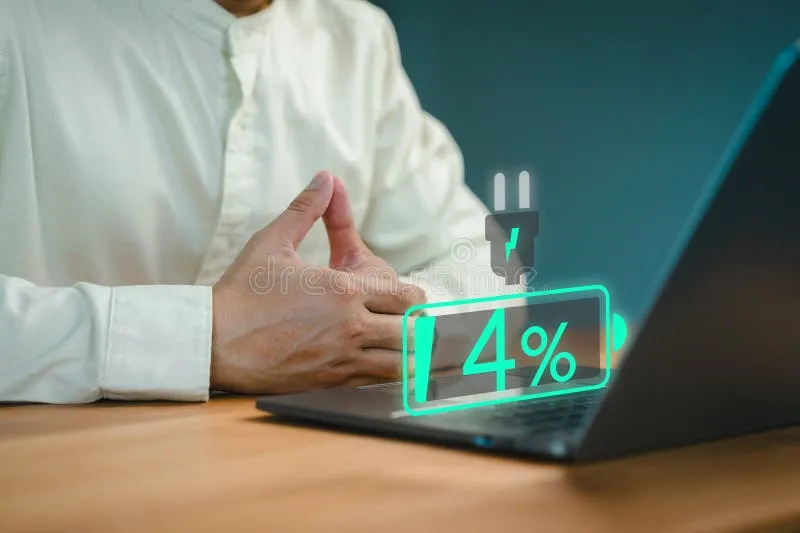
Photo: laptop battery indicator low power coffee shop worker, via thumbs.dreamstime.com
You bought the laptop with the impressive battery rating. You read the spec sheet, maybe even watched a review or two. The box said something like "up to 16 hours." And yet, somewhere around the third Zoom call of the morning, your battery indicator dips below 30% and the anxiety spiral begins.
You're not imagining it. And it's not just you.
Battery life on modern portable workstations is one of the most consistently overpromised, underdelivered specs in consumer tech. But the gap between what manufacturers claim and what you actually get isn't random — it's the result of a handful of very specific, very fixable problems. Let's get into it.
The Benchmark Lie (And Why It Matters)
When a laptop brand advertises battery life, they're typically running a controlled loop test — think: screen at 150 nits, Wi-Fi off, playing a local video file on repeat in airplane mode. That's not a workday. That's a coma.
Real-world workloads look nothing like that. You've got a browser open with 14 tabs. Slack is pinging every few minutes. Your VPN is running. Spotify's streaming. And your screen is cranked up because you're working in a coffee shop near a window in Phoenix in July.
Tests from independent reviewers consistently show real-world battery life running anywhere from 40% to 65% of manufacturer claims under typical professional workloads. That "16-hour" laptop? You're looking at somewhere between 6 and 10 hours, best case.
Knowing that gap exists is step one. Understanding what's filling it is where the real work begins.
Background Processes: The Silent Killers
Open up Task Manager on Windows (or Activity Monitor on macOS) right now. Seriously, do it. There's a decent chance something is chewing through CPU cycles in the background that you haven't thought about in months.
Common offenders include:
- Antivirus software running full scans — many consumer AV programs default to running scheduled scans during "idle" time, which often overlaps with light use like reading or writing
- Cloud sync services — Dropbox, OneDrive, Google Drive, and iCloud can all spike CPU and disk usage when syncing large files
- Browser extensions — some ad blockers and productivity tools are surprisingly resource-hungry
- Windows Update — notorious for kicking off downloads and installations at the worst times
- Electron-based apps — apps like Slack, VS Code, and Discord are built on a framework that's notoriously inefficient with system resources
On Windows 11, head to Settings > System > Power & Battery > Battery Usage to see which apps have consumed the most power over the last week. On macOS, the battery menu bar icon will flag apps that have been using significant energy. These aren't perfect diagnostics, but they'll point you toward your biggest offenders fast.
Your Display Is Probably Your Biggest Enemy
Here's a stat that surprises a lot of people: the display is often responsible for 30–40% of total power draw on a modern laptop. That OLED panel that looks stunning in the store? It's gorgeous and power-hungry, particularly when displaying bright, white-heavy content — like, say, a Google Doc or a spreadsheet.
A few practical adjustments that genuinely move the needle:
- Drop brightness to 50–60% in indoor environments. Most people run their screens way brighter than necessary out of habit.
- Enable adaptive brightness if your laptop supports it — ambient light sensors can do a surprisingly good job of keeping things reasonable automatically.
- Switch to dark mode across your OS and apps if you're on OLED. On LCD panels it's a smaller win, but it still counts.
- Shorten your screen timeout for when the laptop sits idle. Even 30 seconds instead of 5 minutes adds up across a full day.
Peripherals and Ports: Death by a Thousand Dongles
Every USB device you plug in draws power from your laptop. That's obvious. What's less obvious is how much.
A USB-C hub with multiple active connections — external SSD, USB-A mouse, HDMI out to a monitor — can draw anywhere from 2 to 8 watts of additional load. That external monitor alone might be pulling power through the connection. And if you're using a wireless mouse dongle, a USB headset, and an external keyboard simultaneously, you're looking at a meaningful cumulative drain.
If you're running on battery and don't need the external monitor, unplug it. Same goes for any external drives you're not actively reading or writing to. These feel like small things, but they compound quickly over a 4–6 hour stretch.
Power Plans: You're Probably Running the Wrong One
Windows ships with multiple power profiles, and a lot of laptops from Dell, HP, Lenovo, and others add their own proprietary modes on top. It's worth actually checking which one you're running — because "Balanced" on some machines defaults to behavior that's closer to "Performance" than you'd expect.
For extended battery life without nuking your productivity:
- On Windows, try the "Better Battery" or "Battery Saver" profile during lighter tasks. You can switch back to Balanced when you need more horsepower.
- On macOS, enable "Low Power Mode" under System Settings > Battery. Apple's implementation is genuinely well-tuned — it throttles just enough to extend runtime without making things feel sluggish for typical office tasks.
- On many AMD-powered laptops, check for Ryzen-specific power management settings in AMD Software. The difference between "Efficiency" and "Performance" mode can be 90 minutes of battery life on the same workload.
Quick Wins You Can Do Right Now
If you want to stop reading and start fixing, here's the short list:
- Audit your startup apps and kill anything you don't actively need running in the background
- Turn off Bluetooth when you're not using wireless peripherals
- Disable location services for apps that don't need them — this wakes the GPS/location hardware unnecessarily
- Use a browser that's easier on battery — Safari on Mac and Edge on Windows consistently outperform Chrome in power efficiency tests
- Keep your battery between 20% and 80% if you're plugged in most of the day — this preserves long-term battery health and capacity
The Bigger Picture
Battery life isn't a fixed spec — it's a variable that you have more control over than most people realize. The manufacturers aren't lying exactly, they're just testing in conditions that don't reflect how anyone actually works. Once you understand the real levers, you can realistically reclaim an hour or two of runtime on almost any machine without buying anything new.
And if you've already done all of this and your battery still dies before noon? That's a different conversation — one that probably starts with a battery replacement or a machine upgrade. But most of the time, the fix is already sitting right there in your settings menu, waiting.