Why Your Laptop Chokes at Full Speed — And What You Can Actually Do About It
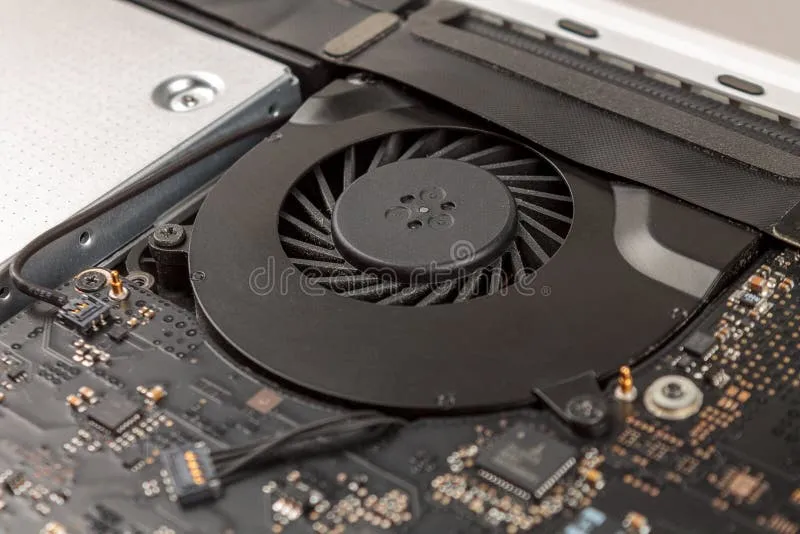
Photo: laptop overheating cooling fan thermal management close up, via thumbs.dreamstime.com
You're on a deadline. You've got a video render running, a browser with 30 tabs open, and Slack doing its thing in the background. Your ultrabook — the one you paid serious money for — starts to feel like it's running through mud. The fans scream, the chassis gets hot enough to double as a hand warmer, and your render time estimate quietly doubles.
Welcome to the thermal throttle problem. It's one of the most frustrating realities of portable computing, and it rarely gets the honest conversation it deserves.
What's Actually Happening Inside That Slim Chassis
Modern processors are genuinely impressive pieces of engineering. They can hit staggering clock speeds for short bursts — that's what shows up in benchmark headlines. But sustaining those speeds generates heat, and heat is the enemy of every thin-and-light laptop ever made.
When a chip senses it's approaching its thermal limit (usually somewhere between 95°C and 105°C depending on the processor), it does the only thing it can: it dials back its clock speed to reduce heat output. This is thermal throttling, and it's completely by design. The alternative is a damaged processor, which is obviously worse.
The problem isn't the throttling itself — it's how aggressively some machines do it, and how quickly they hit that ceiling. A laptop with a cramped chassis, a single heat pipe, and a thin fan has a lot less headroom than a chunkier workstation-class machine. When you're shopping based on spec sheets alone, you'd never know the difference.
Not All Thin Laptops Are Equal
We've spent time pushing several popular ultrabooks and portable systems through sustained workloads — think extended Handbrake encodes, hour-long Cinebench loops, and simultaneous Lightroom exports. The gap between manufacturers is genuinely eye-opening.
Some machines — particularly a few recent AMD-powered models and Apple's M-series MacBooks — maintain impressively consistent performance over long sessions. Apple's fanless MacBook Air, surprisingly, holds up well under moderate workloads thanks to the efficiency architecture of Apple Silicon, though it does throttle noticeably under truly brutal sustained loads. The MacBook Pro with its active cooling tells a different story; it's one of the more thermally stable portable workstations you can buy right now.
On the Windows side, machines with dual-fan setups and larger vapor chamber cooling systems (common in 14-inch and 15-inch workstation-class laptops from brands like Lenovo's ThinkPad X1 Extreme or Dell's XPS 15) tend to hold their clocks better than ultra-thin competitors. The tradeoff is weight and battery life — you're basically paying for thermal headroom.
The machines that struggle most are the ultra-thin 13-inch class. They look fantastic, they're genuinely portable, and their burst performance is excellent. But put them under sustained load and you'll often see CPU speeds drop 30–50% from their advertised boost clocks. For occasional tasks, you'll never notice. For power users doing real work on the road, it matters a lot.
The Software Side: Your Power Profile Is Lying to You
Before you blame the hardware entirely, check your power settings. Windows in particular has a habit of defaulting to "Balanced" mode, which actively limits processor performance even when plugged in. Switching to "Best Performance" in Windows 11's power settings can make a meaningful difference on machines that have thermal headroom to spare.
Many manufacturers also ship their own performance mode utilities — Lenovo Vantage, ASUS Armoury Crate, Dell's Optimizer — and these are worth exploring. Setting a machine to its "Performance" or "Turbo" mode won't magically eliminate throttling, but it can shift the thermal curve enough to squeeze out noticeably better sustained speeds.
For more adventurous users, tools like ThrottleStop (Windows) let you fine-tune power limits and undervolt supported Intel processors. Undervolting reduces the voltage sent to the CPU, which lowers heat output without sacrificing much clock speed. It's not for everyone, and newer Intel generations have locked down some of this functionality, but it remains a legitimate option for enthusiasts willing to experiment carefully.
Physical Fixes That Make a Real Difference
Sometimes the software ceiling isn't the bottleneck — it's the physical reality of your setup.
Laptop cooling pads get a bad reputation, often fairly. The cheap ones with USB-powered fans blowing air at the bottom of a chassis that doesn't even intake from the bottom are basically placebos. But elevated stands that improve airflow around the chassis — especially ones that prop the rear of the machine up — can drop sustained temperatures by a meaningful amount just through passive convection. If you're working at a desk, this is low-effort and genuinely useful.
Repasting the CPU is a more involved fix, but it's one of the most effective things you can do on a machine that's a couple of years old. The thermal paste applied at the factory degrades over time, and degraded paste means worse heat transfer between the chip and the heat pipe. On many laptops, a fresh application of quality thermal compound (Thermal Grizzly Kryonaut is a community favorite) can drop temperatures by 10–20°C. That's not trivial. Just know what you're doing before you crack open a machine under warranty.
Your environment matters more than you'd think. Working in a 75°F coffee shop is a different thermal situation than working in a 90°F car or a stuffy conference room. If you're hitting throttle walls in warm environments, you're not imagining it — ambient temperature directly affects how much thermal headroom your cooling system has to work with.
Buying Smart: What to Look For Before You Commit
If you're in the market and sustained performance is a genuine priority, a few things are worth checking before you swipe your card:
- Look for independent sustained load tests, not just burst benchmarks. Sites that run Cinebench multi-core loops for 10+ minutes will tell you a lot more than a single-run score.
- Dual-fan configurations are almost always better for sustained work than single-fan designs in the same chassis class.
- Processor TDP matters, but so does how the manufacturer configures it. The same chip in two different laptops can behave very differently depending on the power limits each brand sets.
- Thicker isn't always a compromise. A 4.5-pound laptop with proper cooling will outperform a 2.8-pound ultrabook under sustained load every single time.
The dream of maximum portability and maximum sustained performance in the same package is real — it's just more expensive and heavier than the marketing suggests. Knowing what you're actually buying is the first step to getting a machine that keeps up with you, wherever you're working from.