How Long Can Your Laptop Actually Sustain Full Power? The Thermal Budget Explained
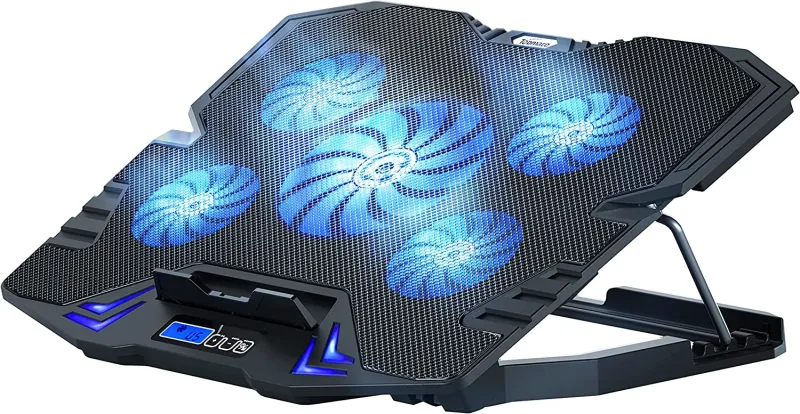
Photo: laptop overheating thermal management professional portable workstation, via assets-prd.ignimgs.com
You're 45 minutes into a video call, screen-sharing a Premiere Pro timeline, and your laptop fan is screaming like it's trying to take off. Then the stutter hits. Playback drops. The client notices. You pretend nothing happened.
This isn't bad luck. It's physics — and it's something you can actually prepare for.
The dirty secret of portable computing is that the performance number on the box is almost always a peak figure, not a sustained one. What your machine can do for 30 seconds under a benchmark is very different from what it can maintain across a two-hour editing session in a warm WeWork conference room. That gap has a name: thermal throttling. And if you work on the road, it's probably already costing you.
What Thermal Throttling Actually Means
Every modern processor — whether it's Intel, AMD, or Apple Silicon — generates heat as a byproduct of doing work. In a desktop tower, that heat has somewhere to go. In a slim laptop chassis, it doesn't. Manufacturers design around a Thermal Design Power (TDP) envelope, which is basically a ceiling on how much heat the system can sustainably dissipate.
When you push past that ceiling, the processor doesn't crash — it slows itself down to cool off. Clock speeds drop. Frame rates drop. Export times balloon. This is throttling, and it's entirely by design. The problem is that most laptops hit that ceiling faster than users expect, especially when ambient temperatures are high, the chassis is sitting flat on a soft surface, or the workload involves multiple components firing at once (say, CPU encoding while the GPU handles a preview).
The 2-hour threshold matters specifically because that's roughly how long many professional tasks run in one sitting — a client call with screen sharing, an on-location editing session, a long flight with a deadline attached. Short benchmark bursts don't capture this reality at all.
How to Map Your Device's Thermal Ceiling
You don't need specialized equipment to get a useful picture of your laptop's thermal behavior. Here's a simple methodology that works across Windows and macOS devices.
Step 1: Establish a baseline. Run a representative task — not a synthetic benchmark, but actual work. Render a short video, export a Lightroom catalog, run a complex spreadsheet calculation. Time it. Note the result.
Step 2: Monitor in real time. On Windows, HWiNFO64 is free and excellent. It logs CPU clock speeds, core temperatures, and package power draw simultaneously. On macOS, iStatMenus or the free version of GPU Monitor Pro gives you similar visibility. Open these tools and watch what happens during the first five minutes of a sustained workload versus the 30-minute mark.
Step 3: Stress it with intent. Tools like Cinebench R23 have a sustained multi-core loop option. Run it for 20–30 minutes and chart the performance curve. Most laptops show a sharp initial spike, then a plateau — sometimes 30–40% lower than the peak. That plateau is your real-world performance ceiling.
Step 4: Repeat in your actual environment. A laptop on a hard desk in a 68°F office behaves differently than the same machine on your lap in a 78°F hotel room. Ambient temperature matters more than most people realize. Run your test in conditions that mirror where you actually work.
What the Numbers Look Like in Practice
Ultrabooks with 15W TDP chips — think thin-and-light business machines — tend to sustain performance reasonably well because the thermal envelope is conservative from the start. They don't spike as high, so they don't have as far to fall.
The rougher story is often with 28W and 45W class chips stuffed into slim chassis. These machines advertise desktop-class performance, and they can deliver it — briefly. Sustained workloads frequently drop these processors to effective clock speeds that a budget machine could match. You've paid a premium for peak performance that evaporates under real conditions.
Apple Silicon is worth calling out here because it genuinely behaves differently. The M-series chips run cooler relative to their performance output, and the performance floor under sustained load tends to stay closer to the ceiling. That's not marketing — it's measurable. But even M-series machines throttle under heavy enough combined workloads, especially on fanless configurations like the MacBook Air.
Practical Workarounds That Actually Help
Knowing your thermal budget is only useful if you do something with that information. Here's what actually moves the needle.
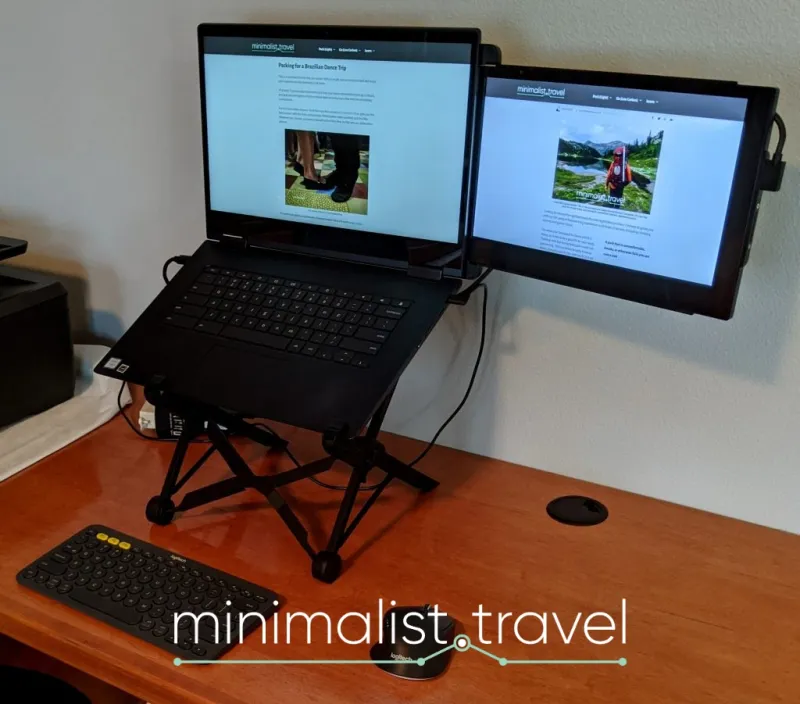
Elevate the chassis. A $15 laptop stand is one of the highest-ROI accessories you can buy. Lifting the machine off a flat surface dramatically improves airflow to the bottom vents. This alone can shave 5–8°C off sustained temperatures on many designs.
Manage your workload sequence. If you know a client call is coming, don't run a background export during it. Stagger heavy tasks so you're not stacking thermal loads. Finish the render, let the machine breathe for five minutes, then jump on the call.
Use performance mode settings deliberately. Windows 11's power slider and many OEM control panels (Lenovo Vantage, ASUS Armory Crate, Dell Optimizer) let you choose between balanced and performance modes. The catch is that performance mode generates more heat, not less throttling. For sustained work, balanced mode often produces more consistent output than performance mode, which spikes and crashes.
Undervolting and fan curve adjustments are available on some platforms and can meaningfully improve sustained performance — but they require comfort with system-level tools and may void warranties. Worth researching for your specific device if you're hitting limits regularly.
Keep the machine cool before the session starts. Close unnecessary tabs, quit background apps, and give the system five minutes at idle before a long workload. You're essentially giving the thermal budget a head start.
Building Your Pre-Trip Performance Check
For mobile professionals, the smartest habit is running a quick thermal test before a trip, not during a deadline crunch. Spend 20 minutes stress-testing your machine at home. Note where performance settles after 30 minutes of sustained load. That number is your real spec — not the one on the product page.
If the sustained performance is acceptable for your use case, great. If it's not, you've got time to adjust: bring a stand, rethink your workflow, or reconsider whether this machine is the right tool for the job you're actually doing.
The pocket workstation that performs when it matters isn't always the most powerful one on paper. It's the one you understand well enough to work with, not against.