The Peripherals Nobody Talks About (That Are Secretly Running Your Mobile Office)
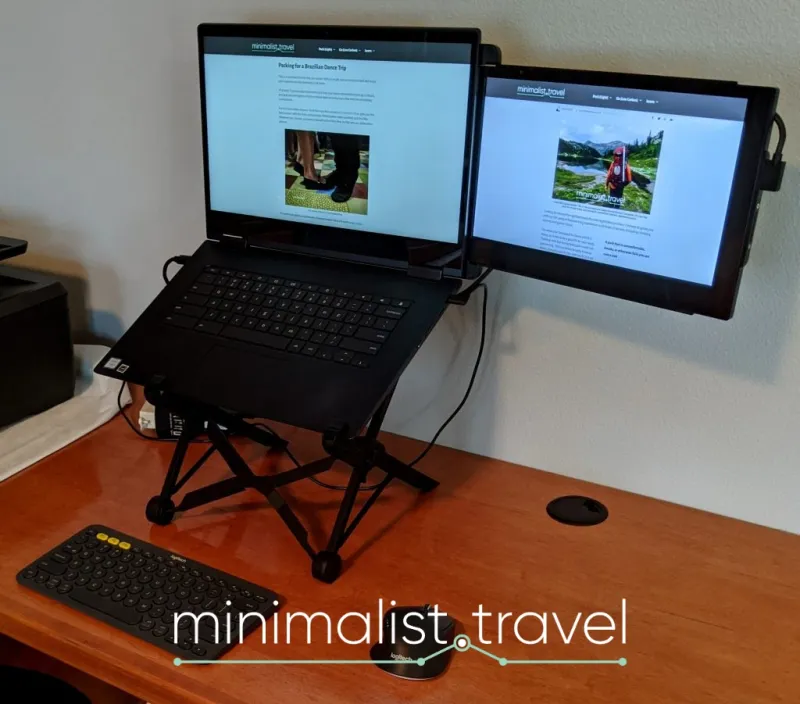
Photo: portable keyboard mouse monitor mobile workspace desk setup, via minimalist.travel
Spend five minutes in any laptop forum and you'll find endless debate about chip architectures, RAM configurations, and which display panel technology deserves your money. What you won't find much of? Serious conversation about the accessories that most mobile workers interact with every single minute of their workday.
Your hands are on a keyboard. Your hand is on a mouse. Your eyes are locked on a screen. These touchpoints define the physical experience of working from anywhere — yet they're almost always an afterthought, grabbed off an Amazon best-seller list without much thought given to what actually makes them work for mobile use specifically.
That distinction matters more than most people realize.
Why "Good Enough" Peripherals Are Costing You More Than You Think
There's a version of this conversation that's purely about comfort and ergonomics — and we'll get there. But let's start somewhere more concrete: productivity loss from bad peripheral choices is measurable.
Research from human factors studies consistently shows that input latency above 50 milliseconds is perceptible to users during fast-paced tasks like coding, writing, or spreadsheet navigation. Many budget wireless mice — particularly older Bluetooth models — operate closer to 80–120ms of input lag under real-world conditions. That's not just annoying. Over a full day of work, the cognitive friction of a slightly laggy cursor adds up in ways that are hard to quantify but very easy to feel.
Keyboard feel has a similar effect. A keyboard with poor key travel or inconsistent actuation force forces your fingers to work harder, increasing fatigue during long writing sessions. For someone hammering out proposals, code, or reports across multiple locations in a week, that matters.
Portable Keyboards: Size Isn't the Only Variable
The temptation with travel keyboards is to go as small as possible. Tenkeyless, 65%, 60% — the smaller the footprint, the easier it is to toss in a bag. But there's a floor below which keyboard size starts actively hurting your work.
Here's what to actually evaluate when picking a portable keyboard:
Key travel and switch feel. Most ultra-slim travel keyboards use scissor switches or low-profile mechanical switches. Neither is inherently bad, but the range of quality is enormous. A keyboard like the Logitech MX Keys Mini offers a satisfying scissor-switch feel with good feedback for a flat board. Keychron's K7 or K3 give you genuine low-profile mechanical options with real tactile response — a meaningful step up for heavy typists who don't want to sacrifice feel for portability.
Wireless reliability. Bluetooth keyboards are the obvious choice for a clutter-free setup, but Bluetooth has historically been flaky in dense wireless environments — airports, convention centers, hotel lobbies. If you regularly work in those environments, look for keyboards that offer a 2.4GHz USB dongle option alongside Bluetooth. The dongle connection is almost always more stable and lower latency.
Multi-device pairing. This one's underrated. If you're switching between a laptop, a tablet, and maybe a phone across your workday, a keyboard that can pair with three devices and switch between them with a button press (like most Logitech and Keychron options) is genuinely useful — not just a nice-to-have.
Travel Mice: The Latency Problem Nobody Warns You About
The travel mouse market is crowded with options that look great in product photos and disappoint in practice. The main thing to understand: not all wireless is equal.
Bluetooth mice — especially those using older Bluetooth 4.x — can struggle with connection stability and introduce noticeable latency compared to dedicated 2.4GHz RF connections. If you're doing precision work (photo editing, design, detailed spreadsheets), the difference between a Bluetooth mouse and something using Logitech's Lightspeed or a similar proprietary RF protocol is very real.
For travel specifically, form factor matters in a different way than it does for a desk mouse. You're not just thinking about hand comfort — you're thinking about bag space and how the mouse holds up to being tossed around. A few worth considering in different categories:
- Compact but full-featured: The Logitech MX Anywhere 3 hits a sweet spot of portability and actual usability, with a solid scroll wheel and reliable wireless performance
- Ultra-portable: The Microsoft Arc Mouse folds flat for packing but divides opinion on ergonomics — fine for light use, not ideal for long sessions
- Vertical ergonomics on the go: Logitech's MX Vertical is larger than a travel mouse has any right to be, but if wrist strain is an issue, the ergonomic benefit may justify the bag real estate
One underrated factor: charging port. A mouse that charges via USB-C fits into the same cable ecosystem as your laptop and other devices. A mouse that still uses Micro-USB is a small but genuine inconvenience that compounds over hundreds of trips.
Portable Monitors: The Peripheral That Changes Everything (If You Pick Right)
If you do any kind of multi-window work — and most knowledge workers do — a portable monitor is probably the single highest-impact peripheral upgrade you can make to a mobile setup. The ability to drag reference material, communications, or a dashboard to a second screen while keeping your primary work front and center is transformative.
But the portable monitor space has some real gotchas.
Resolution vs. screen size math. A 15.6-inch portable monitor at 1080p looks noticeably soft compared to a modern laptop display. If your laptop has a high-DPI screen, you'll feel the visual downgrade immediately. Look for at least 1440p at that size, or consider a smaller display (13–14 inches) where 1080p still looks sharp.
Power delivery. Many portable monitors draw power over USB-C from your laptop — convenient, but it's also pulling from your battery. If you're running on battery power, this is worth factoring in. Some monitors accept their own USB-C power input, which lets you run them from a small USB-C charger or power bank instead of taxing your laptop.
Weight and build quality. The difference between a 1.5-pound and a 2.2-pound portable monitor sounds trivial until you've carried both through an airport. Check the included stand as well — a monitor that requires you to prop it up with the case cover or a separate kickstand is more annoying to set up than one with a built-in adjustable stand.
Building the Setup That Actually Travels
The best mobile peripheral setup isn't the most feature-packed one — it's the one you'll actually bring with you. A keyboard that lives in your bag because it's genuinely light and compact beats the technically superior option sitting at home because it's too heavy to justify packing.
The framework to use:
- Define your minimum viable setup — what do you actually need to be productive in your most common away-from-desk scenario?
- Prioritize connection reliability over raw specs — a slightly slower mouse that never drops connection beats a faster one that hiccups in a busy hotel
- Think in systems, not individual products — a keyboard, mouse, and monitor that share the same USB-C dongle or power ecosystem reduce friction significantly
- Weight-test before you commit — physically load your bag with the gear and carry it for 20 minutes before deciding it's acceptable
The laptop gets the glory. But the peripherals are where the actual work happens. Treat them like the serious tools they are, and your mobile setup will feel less like a compromise and more like a genuine workstation — wherever you happen to open it.